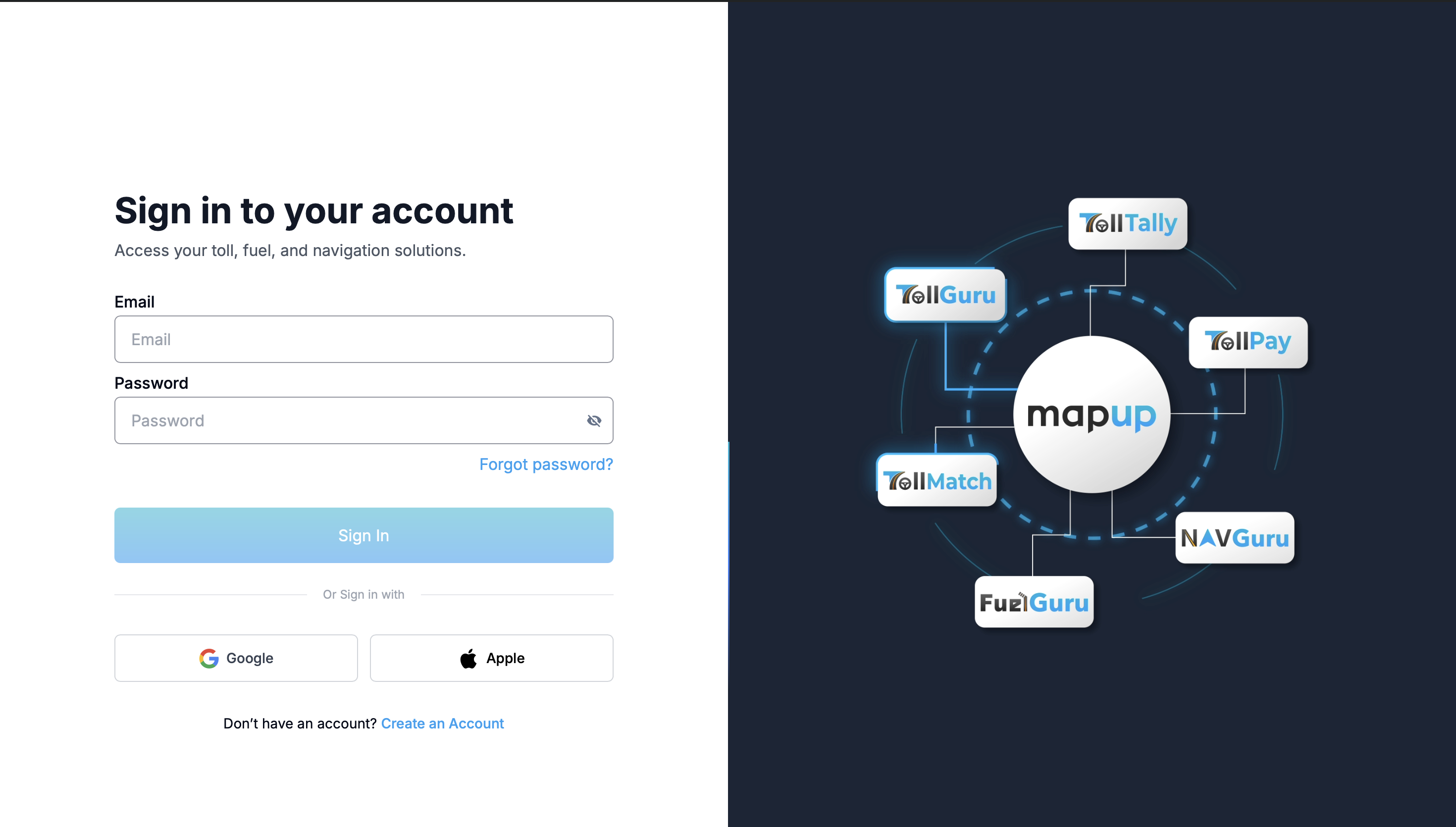
1. Log in
Go to the MapUp dashboard sign-in page and sign in with the login credentials we emailed you.
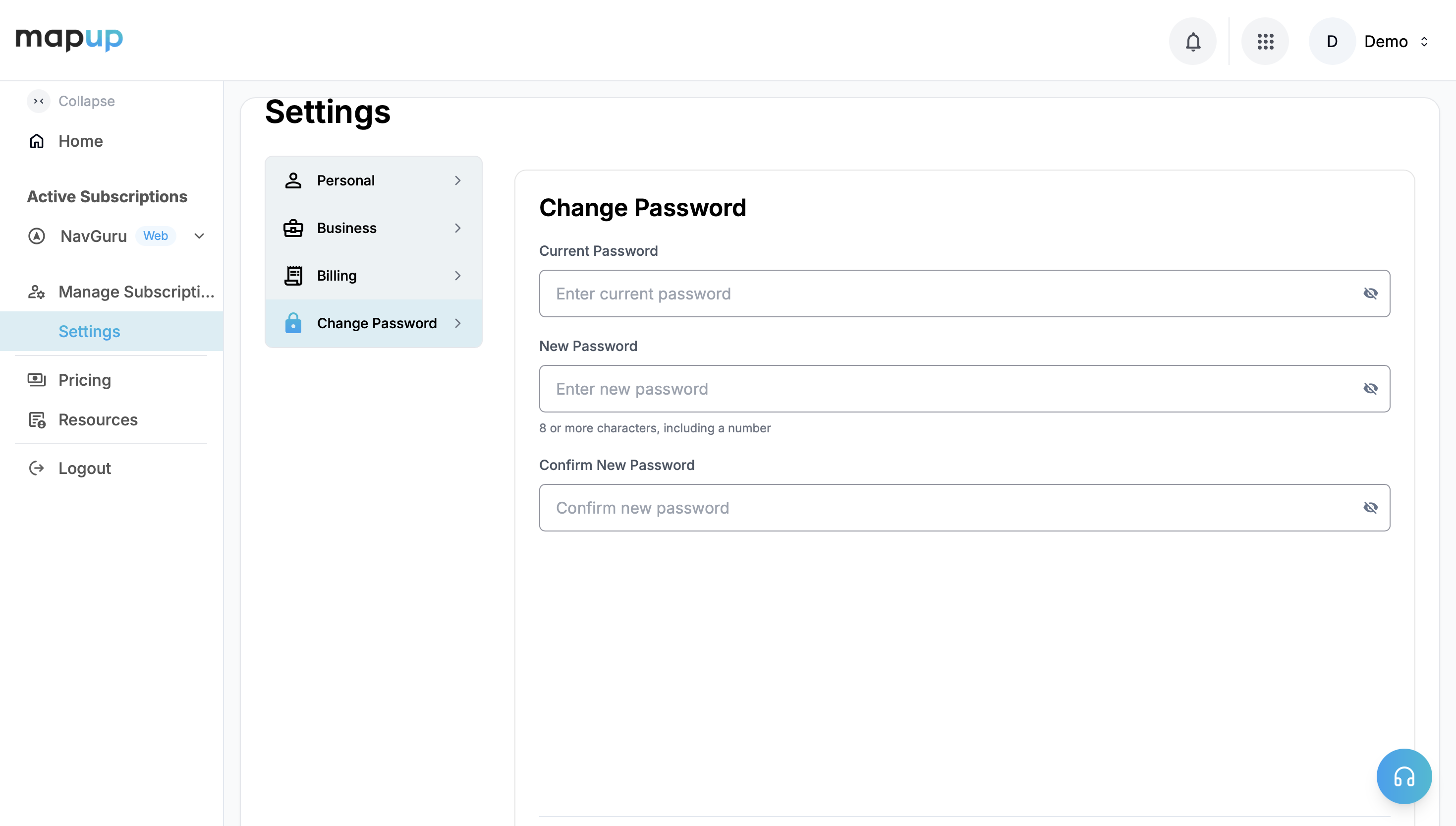
2. Reset your password
After signing in you land on the Change Password screen. If you signed in with the credentials we shared, set a new password to secure your account.
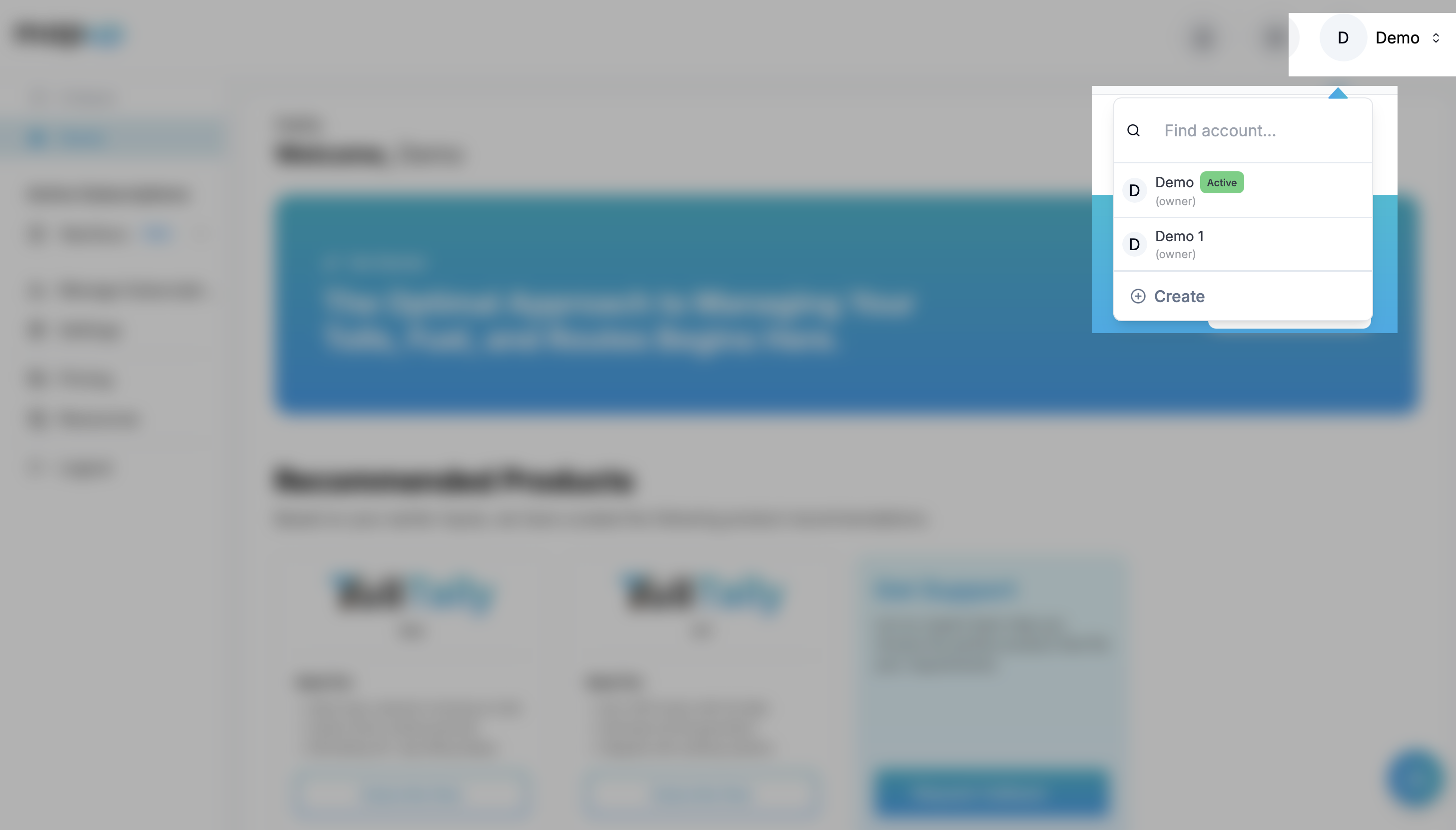
3. Switch to your fleet account
- Open the Accounts dropdown in the top-right corner. You'll see two accounts, the first being your individual account, which isn't preferred for organization-level products like NavGuru.
- Switch to the account that goes by your fleet name. This is your organization account, where your NavGuru data is reported.
- You can add other members from your organization to give them access to this account, and manage access levels for each product.
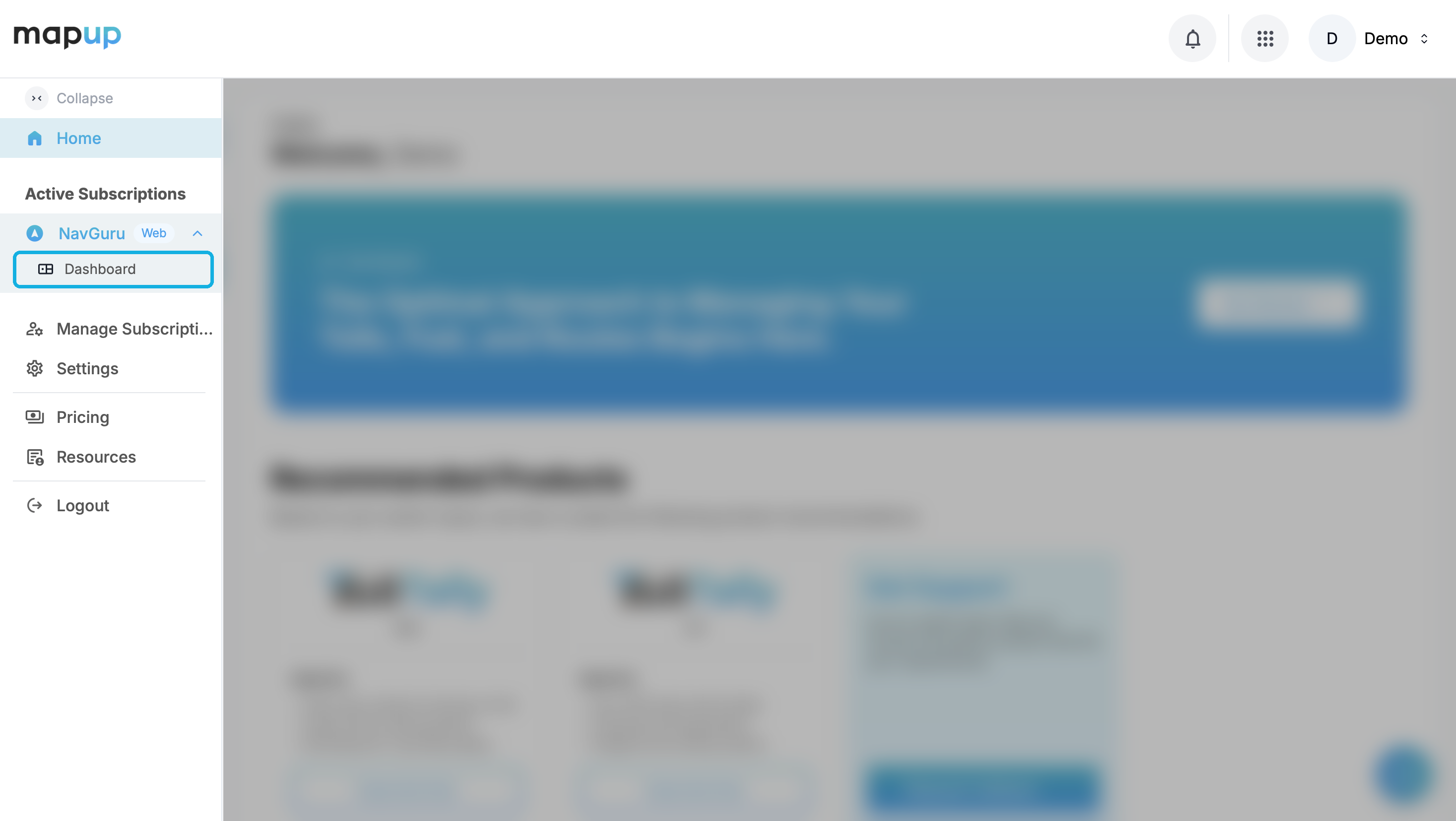
4. Open the NavGuru dashboard
In the left sidebar under Active Subscriptions, expand NavGuru and click Dashboard.
5. Manage your fleet accountOptional
From your fleet account you can invite and manage team members. Do this whenever you need to give teammates access.
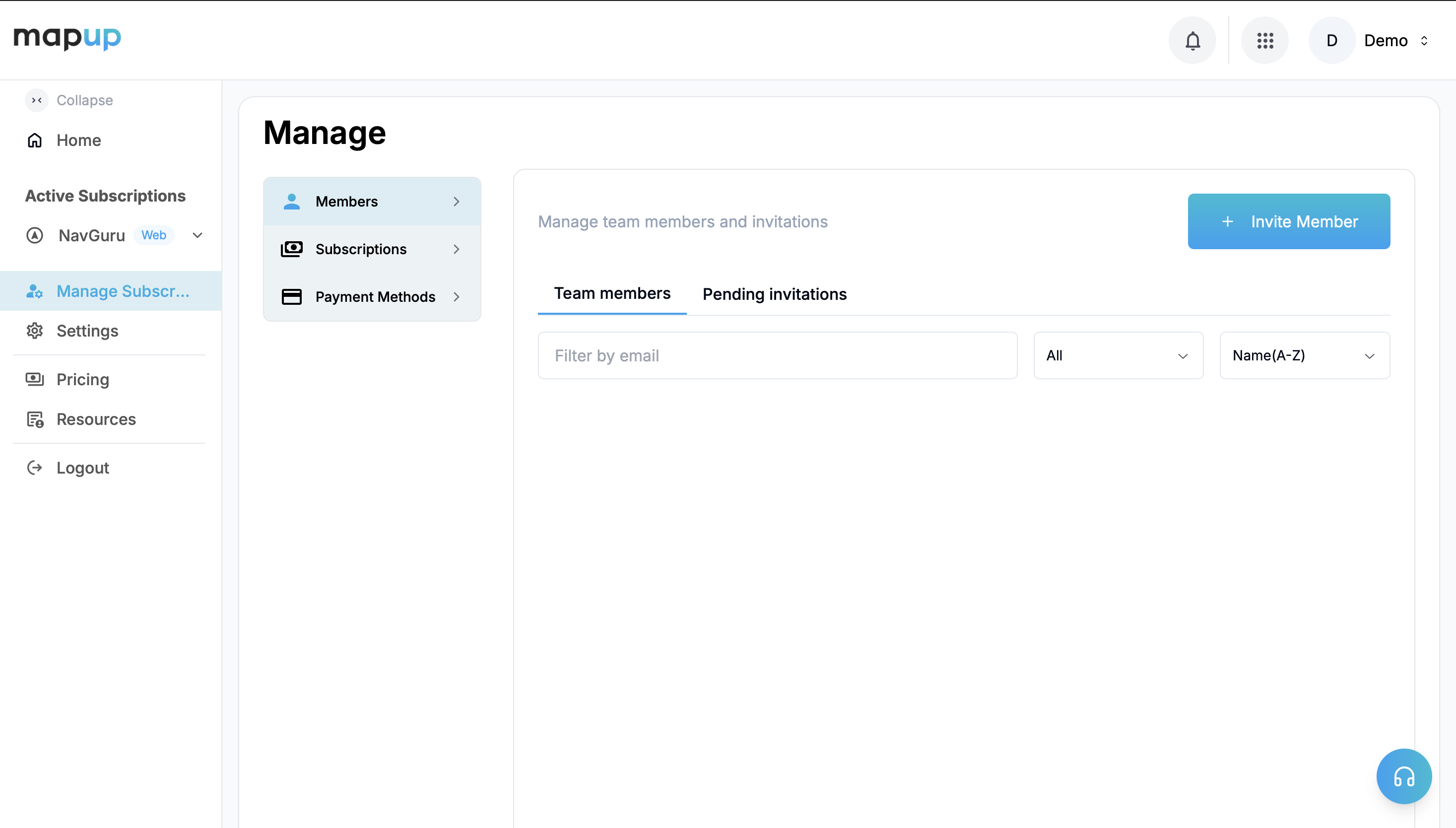
Go to Manage Subscriptions → Members and click Invite Member. Enter their email address, choose a role, and send the invitation.
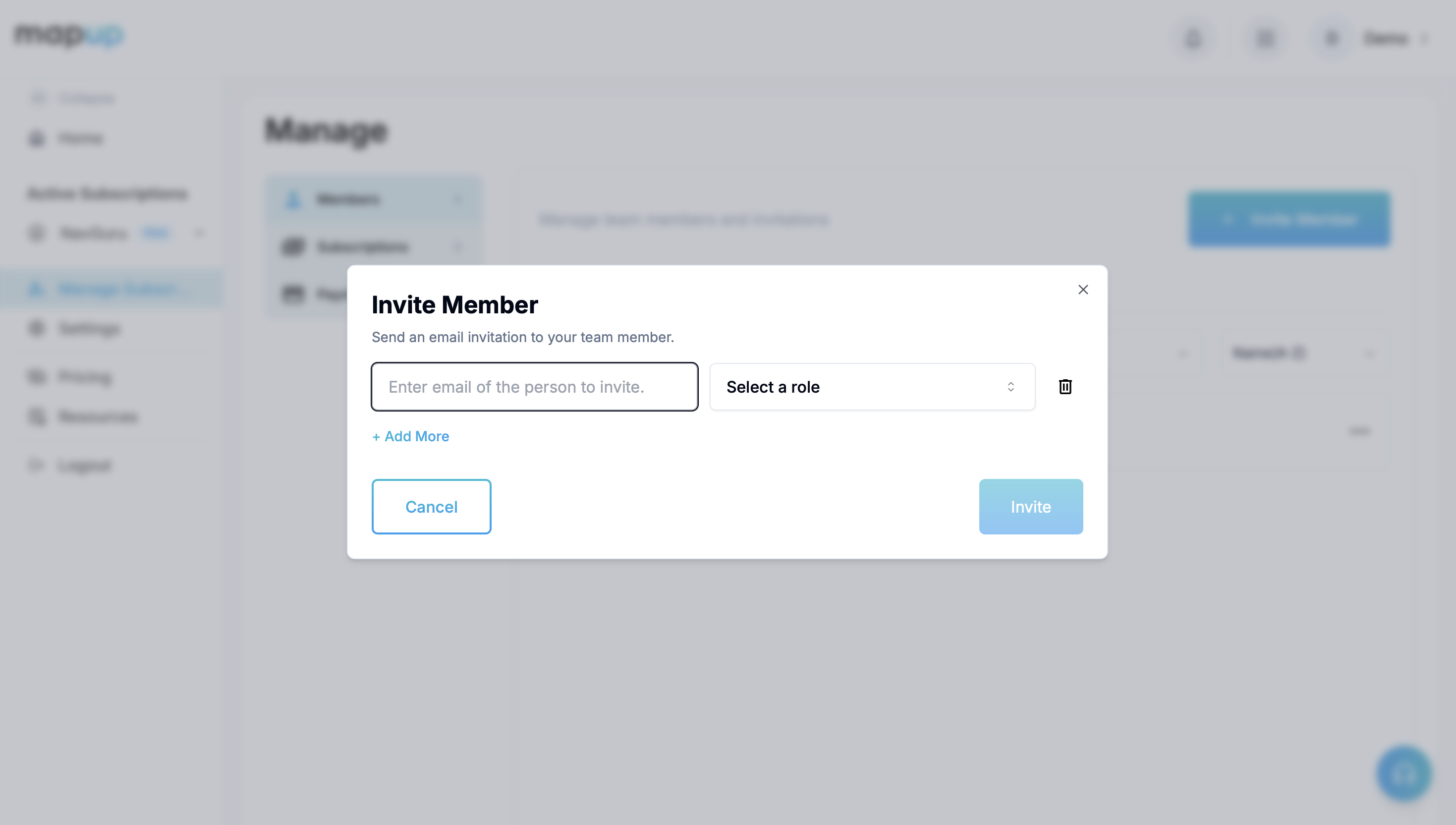
After you invite someone, they need to sign up with that email and accept the invitation, either from the invite email or from the notification in the top-right corner (just left of the account switcher).