1. What TollTally needs from you
TollTally turns where a vehicle went into what it should have paid. It needs three things: the GPS your vehicles already produce, the configuration of each unit, and a place to send the numbers. Nothing is installed in the vehicle.
| Input | What it is | Where it comes from |
|---|---|---|
| GPS | Position and time for every vehicle, live or historical | Your telematics or ELD platform (Geotab, Motive, Samsara, Platform Science, Wialon), or a direct feed by API, SFTP, webhook, file upload or the customer-hosted SDK |
| Unit configuration | Axle count, weight, height, length, vehicle class, tractor and trailer configuration, payment method (tag or plate), transponder ID and plate per unit; Euro or CO2 emission class where a country prices on it | Pulled from the telematics platform where it holds them; you complete and confirm the rest in the dashboard |
| Where the numbers go | Billing, driver reimbursement or cost-center export: which columns, which schedule, which system | Your TMS, ERP or payroll system; decided with your MapUp contact at setup |
You do not need toll authority statements or transponder program invoices to run TollTally. Those are what TollMatch compares TollTally against after the fact.
2. Set up in order
Create the account
Sign up at platforms.mapup.ai. If several people will log in, use a shared mailbox or have each person sign up and send us the emails so we add them to one organization. TollTally shares this account with TollGuru and TollMatch.
Turn on TollTally
Two ways. Self-serve: open Subscriptions in the sidebar and subscribe to TollTally Dashboard under TollTally Web (for the connected dashboard) or to TollTally Route Specific Tolls (for the API); you are taken to the TollTally dashboard to connect your marketplace. Enterprise: email your sign-up address to tolltally@mapup.ai and we enable TollTally on the account. Either way the TollTally API key is in the TollTally API Keys section of the dashboard, up to 10 keys per account. It is a separate key from the TollGuru key (see the developer guide).
Connect your telematics
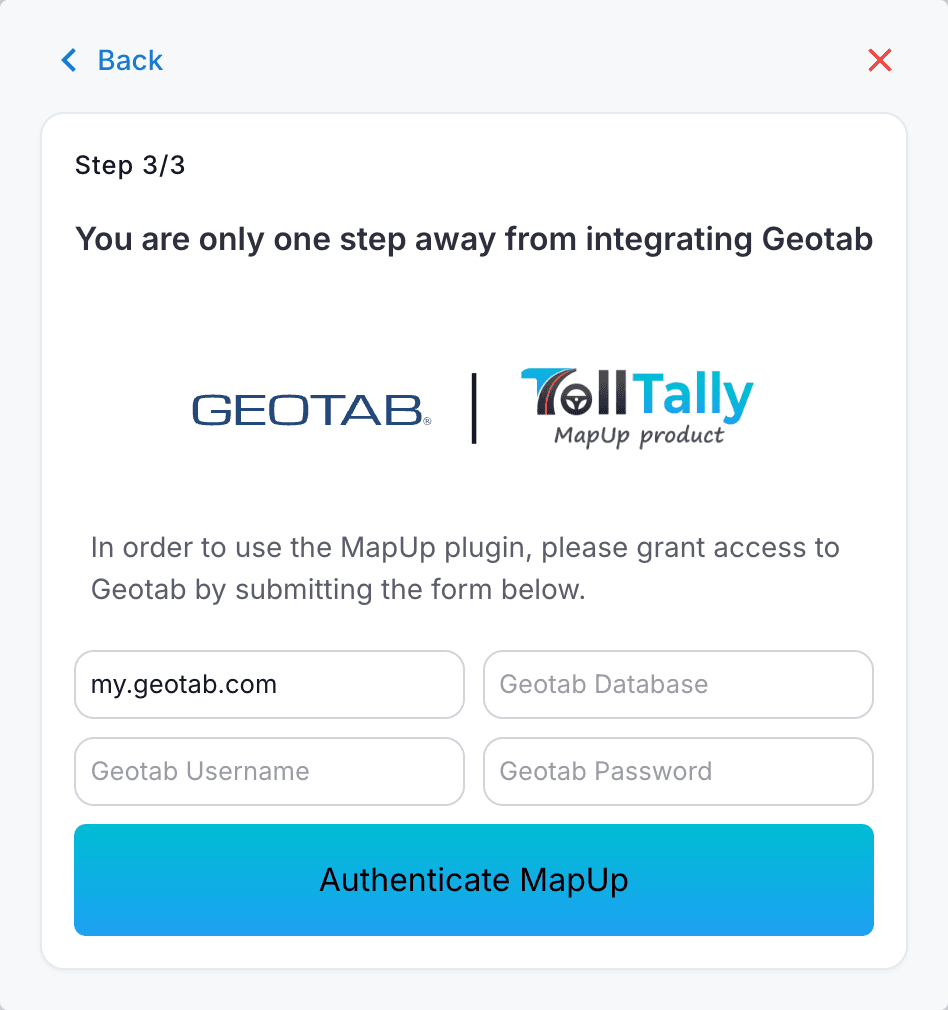
In the dashboard open Settings, then My integrations. Geotab: select Geotab, choose region, vehicle type and currency (EU fleets also select emission and CO2 class), enter your MyGeotab server, database name and the service account credentials, and click Authenticate MapUp. Motive follows the same pattern. Samsara: authorize TollTally from the Samsara marketplace, or generate a Samsara API token and share it through the secure channel we set up with you, never by email or chat. Platform Science and Wialon fleets are connected through those platforms. Geotab fleets that want TollTally inside MyGeotab follow the add-in steps below; the marketplace path starts free for 14 days.
Check every unit
Vehicle attributes are pulled from the telematics platform where it holds them. Open the Unit view and confirm, for every vehicle, the axle count, weight, height, vehicle class, tag or plate payment method, transponder ID and plate, and the trailer pairing. The same road prices differently by axle count, weight or tag type, so a unit with the wrong class produces the wrong toll for every crossing until it is corrected. Units with a confirmed transponder show a verified tag badge. To match TollTally to your own roster, export the Vehicles list (name, VIN, plate) as CSV and join on VIN or plate.
See the first dashboard
Tolls for connected vehicles appear from the next morning; a live dashboard is up within 12 to 24 hours of the connection. It refreshes every 24 hours by default and can be set to refresh every 30 minutes where your billing needs it. First-time setup on a marketplace add-in takes 2 to 3 hours end to end.
Set your policies
Tell TollTally which managed-lane use is authorized (express lanes, HOV and HOT pricing) so trips that use them are flagged. Decide which trips are excluded from billing, for example deadhead. Both are dashboard settings, not tickets.
Set up the exports
Choose the columns, the timestamps (facility-local, so they match the authority statement when it arrives) and the schedule for the SFTP export to your TMS, ERP or payroll system, or connect by API. Billable toll per trip, driver reimbursement statements and cost-center allocation come from the same records.
Geotab: TollTally inside MyGeotab
The Geotab path adds an add-in so your team opens TollTally from the MyGeotab menu with their MyGeotab login. Installing the add-in and enrolling vehicles are two different steps.
Create a service account in MyGeotab
Administration, Users, Add. Authentication type Service Account, security clearance View Only, with data sharing enabled so TollTally can read trips and vehicles. One service account per Geotab database.
Authenticate it in TollTally
Settings, My integrations, Geotab: enter the server, database name and the service account credentials, and click Authenticate MapUp. Then download the add-in package TollTally generates for your database (a .zip).
Install the add-in
In MyGeotab: Administration, System Settings, Add-Ins, the plus button, upload the .zip, Done. An administrator installs; everyone in the same database can then open TollTally from the Add-Ins menu.
Enroll the vehicles
If you came through Order Now, enroll the units you want processed; installing the add-in does not enroll the fleet, and enrollment is what starts processing and billing for those units. Enrolled units appear in the Vehicles view with trips once data flows.
Several Geotab databases: connect each one with its own service account and install the add-in in each. Changed the service account password: reconnect it under My integrations and the add-in picks up the new credentials.
3. Pick the connection path
Every source is normalized into one trip model before any toll is calculated, so the path changes how fast you are live, not what you get.
| Path | Who it suits | What it takes | Time to live |
|---|---|---|---|
| Marketplace add-in | Fleets on Geotab or Samsara | Toggle in the marketplace plus vehicle and toll-account mapping; MyGeotab users log in with their MyGeotab credentials | First-time setup 2 to 3 hours; dashboard within 12 to 24 hours |
| Platform API connection | Fleets on Motive, Platform Science or Wialon | You authorize the connection from your platform account | Dashboard within 12 to 24 hours of authorization |
| Direct feed | Fleets and fleet technology providers with their own GPS pipeline | GPS by API, SFTP, webhook or file upload; vehicle identifiers and configuration mapped once | Days to weeks, paced by your IT and security review |
| TollTally API | Platforms that price trips or reimburse drivers inside their own product | Send a route polyline from any mapping service, or GPS tracks, with the TollTally key; get tolls back | Same day once the key is issued |
| Customer-hosted SDK | Very high volume or data-residency requirements | Signed container images and encrypted data deltas; you deploy with Terraform inside your own cloud account, run the supplied test cases and approve go-live; toll data and map updates arrive as deltas | Technical integration measured in days |
Historical GPS works the same way as live GPS. Send past tracks and TollTally calculates the tolls for trips already driven, which is how most fleets check TollTally against a statement period before they change a billing process.
4. The first statement period: check TollTally against what you were charged
Run TollTally for one full statement period on units whose toll transactions you can pull. Nothing changes in your billing yet. When the authority or transponder program statement arrives, compare it line by line. The point is to find configuration and coverage gaps on your fleet before they reach an invoice.
| # | Test | How | Pass when |
|---|---|---|---|
| 1 | Every unit is present and configured | Compare the Unit view to your unit list | Same count; class, axles, tag or plate and transponder correct on every unit; verified tag badge on tagged units |
| 2 | A known crossing appears | Pick a crossing you can vouch for; open the Transaction view | Facility, gantry or plaza, direction, facility-local time, tag rate and plate rate all shown, with the map |
| 3 | Per-unit totals add up | Unit view for the period | Total per unit equals the sum of its transactions |
| 4 | Trips carry their legs | Trip view for one multi-stop day | Per-leg cost, and the managed-lane flag where an express lane was used |
| 5 | A gap is flagged, not absorbed | Find a unit with a known GPS gap (device off, tunnel, garage) | The gap is marked on the trip; no toll is invented across it |
| 6 | A deadhead trip can be excluded | Exclude one trip from billing | The trip drops out of the billable export and stays in the record |
| 7 | The export lands | Run the scheduled SFTP export or the API pull | File arrives with the chosen columns and facility-local timestamps |
| 8 | The statement reconciles | Match statement lines to TollTally transactions by unit, facility and time | Every difference falls into one of the four classes below |
Classify every difference before you act on it:
| Class | What it looks like | Who fixes it |
|---|---|---|
| Configuration | TollTally priced the wrong class, or the plate rate where a tag was present, because the unit's attributes or transponder mapping were wrong | You correct the unit; we regenerate the affected trips |
| GPS quality | A crossing is missing because the trace was sparse or absent at the plaza, or a crossing appears that the vehicle did not make because of a jump | Flagged by TollTally on the trip; check the device and ping rate with your telematics provider |
| Coverage | A facility, a rate or a new gantry that TollTally does not know | Report it to tolltally@mapup.ai with the facility and date; the toll data team corrects the rate table |
| Authority billing | The statement is wrong: maximum fare on a closed system because entry or exit was not read, a duplicate, a class overcharge, a misread tag | This is what TollMatch finds and files; TollTally is the expected toll it is compared against |
Acceptance: every unit configured, every difference in one of the four classes, the export in your system with the columns you asked for. From here fleets typically switch customer billing and driver reimbursement to the TollTally record and keep the statement for reconciliation.
5. What you get after setup
| Output | What it is | Where |
|---|---|---|
| Toll transaction | One record per crossing: unit, facility, gantry or plaza, direction, facility-local timestamp, vehicle class applied, tag rate and plate rate, map | Transaction view, export, API |
| Unit total | Toll per vehicle per period, with the tag and plate mapping used | Unit view, export |
| Trip | The reconstructed trip with toll per leg and any policy flag | Trip view, export |
| Billable toll per trip | The toll to pass through to a customer or job, with excluded trips removed | Scheduled export, API |
| Driver reimbursement | Toll per driver at the tag rate, ready for payroll | Scheduled export |
| Quality flags | GPS gaps, jumps and low-quality segments that could affect a toll | Trip view, export |
6. Troubleshooting
| Symptom | Likely cause | What to do | Who |
|---|---|---|---|
| Fewer vehicles than the fleet | Units not in scope of the connection, not enabled on the telematics side, or (Geotab Order Now) not enrolled | Check the vehicle list in the telematics platform, the scope of the credential and the enrollment; we resync | You, then MapUp |
| Add-in does not load in MyGeotab | Add-in not installed or not enabled, user clearance, or the service account not connected | Administration, System Settings, Add-Ins: confirm TollTally is installed and enabled; confirm the service account connection under My integrations | You |
| Integration Not Available in MyGeotab | The Geotab service account is not connected | Re-authenticate it in TollTally under My integrations, then reopen the add-in | You |
| Login window keeps reappearing | Wrong server (my.geotab.com versus a custom server), database name or credentials; expired session | Check the server and database name; reconnect the service account | You |
| A Contact Us page instead of the app | The user is not in the Geotab database the service account is connected to | Ask your Geotab admin to confirm the user's database | You |
| A unit shows no trips | The device is not paired or not reporting GPS on the telematics side | Confirm the unit reports position in the provider portal; TollTally cannot price what it does not receive | You and your telematics provider |
| Toll higher or lower than expected on every crossing for one unit | Wrong class, axle count, weight or tag or plate setting on the unit | Correct the unit in the Unit view and tell us; we regenerate the affected period | You, then MapUp |
| A crossing is missing | GPS gap at the plaza: sparse pings, tunnel, device off; on a ticket system the entry or exit lies outside the trace | Check the trip for the gap flag; raise the ping rate with the provider if it is a pattern | You and your telematics provider |
| A crossing the vehicle did not make | GPS jump: a point snapped to a toll road the vehicle was near, not on | Check the flag on the trip and send us the unit and time if it is not flagged | MapUp |
| Dashboard has not refreshed | 24-hour default refresh | Ask for the 30-minute refresh if your billing needs it | MapUp |
| Export did not arrive | SFTP credentials, path or schedule | Send the run time and the expected file name; we check the export job | MapUp |
| A facility or rate looks wrong | Rate table or geometry needs a correction | Send facility, direction, date and the amount you expected; the toll data team corrects it and we regenerate | MapUp |
7. Raising a ticket
Email tolltally@mapup.ai, call +1 510 766 0570, or use the shared channel your fleet was given at onboarding, with: fleet name (and the Geotab database name if you use the add-in); the unit ID; the facility and direction; the approximate time and time zone; the amount you expected and why (statement line, tag rate, class); and a screenshot. A specific unit, facility and time is reconstructed the same day; "the tolls are wrong" is not. First response within one business day. Subscription and invoice questions go to billing@mapup.ai; invoices are under Usage and Invoices in the dashboard.
| Severity | Definition | Commitment |
|---|---|---|
| P0 | No toll records being produced for the fleet, or the dashboard down | Worked immediately; fixed within five business days |
| P1 | A feature not working for some units or users, with a workaround | Fixed within one sprint; a build ships every two weeks |
| P2 | Cosmetic, discoverability or usability | Prioritized in the weekly review; scheduled in the release plan |
| Data | A facility, rate or geometry correction | Corrected in the toll data; affected trips regenerated |
| Question | How-to, configuration, or how a toll was computed | Answered on the shared channel; added to the FAQ |
Every ticket goes on the fleet's shared issue log with a severity, an owner and a date. Enterprise agreements carry their own response-time terms and apply where stricter.